

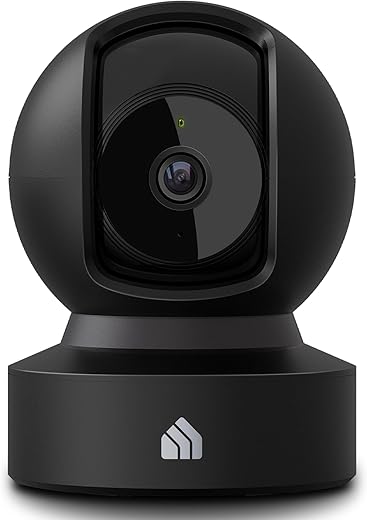
Why we use a pan-tilt-zoom camera for baby monitoring
We chose a PTZ indoor camera because it gives us flexible, real-time views of the crib and nursery. The pan, tilt, and zoom let us follow movement without multiple fixed cameras. This keeps our setup simple and less intrusive.
In this article we explain placement and mounting, how we configure alerts and presets, daytime and night monitoring, and audio tips. We also cover privacy, security, storage, and safe sharing so our family stays protected. We share practical, tested tips daily.
If you’re new to smart home gear, our How-To tutorials walk through similar setups step by step so you can build confidence before adding more devices.


Benefits of PTZ over fixed cameras for watching our baby
Wide coverage from a single device
A single PTZ camera can replace two or three fixed units by sweeping the room—crib, changing table, and play corner—so we avoid extra cords and clutter. We mounted ours high and use presets to jump between key views in one tap.
Follow movement without multiple feeds
When our toddler scoots from the crib to the toy bin, the camera’s pan and tilt let us track the action without switching apps or monitoring multiple streams. Tip: use slow pans (10–20°/s) so movement looks natural and won’t trigger the baby.
Zoom to inspect fine details
Optical zoom lets us check small things—loose blanket, pacifier, or breathing motion—without picking the baby up. Prefer models with true optical zoom (Reolink E1 Zoom, some Eufy PTZs) over purely digital zoom for clarity.
Convenience, cost, and clutter
Instead of buying two fixed Wyze Cam v3s, a mid-range PTZ often costs about the same but reduces wall anchors, power outlets, and app noise.
Quick practical tips:
Everyday scenarios where PTZ shines
We use PTZ during playtime to capture wide activity, to verify a nightlight’s status, and immediately inspect the crib after feeds—no stomping into the nursery required.
The same presets work well in our living room too, especially with indoor pet cams like the ones in Best Indoor Wi-Fi Cameras for Pet Monitoring.
Where and how we mount the camera for the best view and safety
Choosing the vantage point
We pick a high corner or ceiling spot that gives a full view of the crib and entry door while staying well out of reach—about 7–9 ft up in our rooms. High placement preserves context (room layout) and lets the PTZ zoom in for detail without losing where the baby is.
Mount options and securing
We compared ceiling mounts vs. wall mounts and landed on a ceiling mount above the crib corner for the widest sweep. Use the right anchors for your surface: toggle bolts for drywall, masonry anchors for brick, and a stud if you can. Add a safety tether to the camera body to prevent drops.
Cable routing and infant-proofing
Run power along the ceiling and down the wall, using paintable raceway covers or cord channels to remove chewing or strangulation hazards. Keep adapters at adult height or inside a secured outlet box; never tuck loose cords behind furniture where they can be pulled.
Testing angles and eliminating blind spots
We tested multiple heights and presets: crib center, doorway, changing table. Walk the room while watching live feed to find blind spots and adjust tilt/pan limits. Practical tip: mount slightly off-center so the PTZ doesn’t need full travel to see both crib and door.
The same blind-spot checks apply to front yards and driveways too, like in Place Outdoor Security Cameras to Eliminate Blind Spots (4 Smart Steps).
Configuring settings and automation so the camera works for us
Motion zones and sensitivity
We carve out motion zones to ignore curtains, ceiling fans, or our cat’s favorite sun patch. On our Reolink E1 Zoom and Wyze Cam Pan v2 we draw boxes over static clutter and lower sensitivity around the doorway to cut false alerts. Start conservative, then open zones if you miss real movement.
Scheduling active hours and notifications
We schedule the camera to be active during nap blocks and overnight (using the app’s timeline or Google Home routines). We choose notification channels depending on urgency:
Presets, patrols, and one-touch controls
We create presets: “crib close-up,” “door view,” and “changing table.” A patrol path cycles those three every 30–60 seconds for quick context without manual control.
Testing and troubleshooting
We run a 3–5 day calibration: tweak zones, sensitivity, and schedule to match our baby’s patterns. If alerts stop, we update firmware, check push permissions, and recalibrate zones. In busy households, lowering sensitivity and tightening zones usually fixes noise-induced alerts.
A few practical tweaks here make the camera a reliable partner—next we cover how we use these settings for night monitoring and audio so we can see and hear when it matters.
How we use pan, tilt, and zoom during daily care
Following play and movement
When our baby starts crawling, we pan to follow a toy chase rather than sprinting around the room. A quick swipe on the phone or a flick of the joystick on a dedicated monitor keeps the baby framed; on the Reolink E1 Zoom we slow the pan speed to avoid jerky motion. For hands-free watching, a 30–45 second patrol across play areas gives context without constant input.
Sleep checks: tilt for face and breathing
At nap time we tilt down for a close view of the cheek color and subtle chest rise. A “sleep close-up” preset takes one tap and returns the camera to the crib angle afterward, so we don’t forget to restore the wider view.
Zoom for quick inspections
Optical zoom lets us inspect a pacifier, a small rash, or a swallowed object from the doorway. We zoom in gradually, hold to stabilize the image, then zoom out before entering to keep the baby undisturbed. Prefer optical over digital zoom for clarity.
Presets, manual control, and etiquette
Night monitoring and audio: seeing and hearing when it matters
Optimizing low-light and IR
At night we enable IR/night vision and test the image from the doorway, at crib height, and at a few diagonal angles — small shifts reveal IR hotspots and reflections. On one camera reducing exposure by one step cut the IR bloom on the crib rail noticeably. Aim for a sweet spot where facial detail and chest rise are readable without bright white glare.
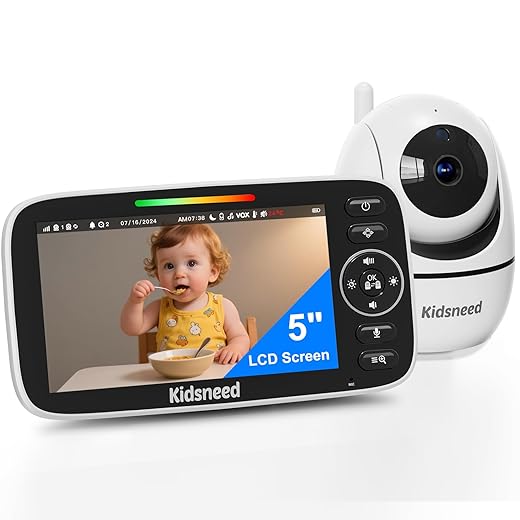
Two-way audio for soothing without entry
We use two-way audio to calm our baby from the hallway: a soft shush or familiar voice often works faster than waking everyone. Practice the microphone distance and volume so our voice is clear but not startling. Tip: test both the monitor speaker and phone app speaker—latency can change tone.
Configuring sound detection and balancing alerts
Night checks and rehearsals
Each night we do a quick checklist: IR clarity, mic/speaker test, and a simulated alert to rehearse our response. When a sound alert arrives, we glance at video first (is it fussing or full cry?) then act—this combo saves sleep and reduces unnecessary entries.
Privacy, security, storage, and sharing: protecting our family
Hardening the setup
We treat the camera like any other door key: lock it down. Our routine includes:
Storage: local microSD vs encrypted cloud
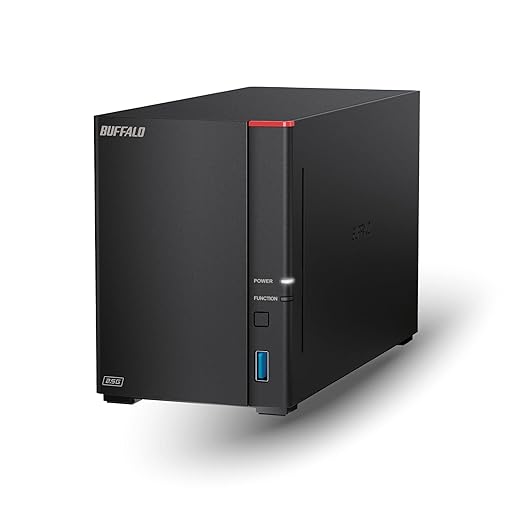
We weighed reliability, access, and cost. Local microSD is fast and private but vulnerable to theft/failure; encrypted cloud gives off‑site safety and easier sharing but costs monthly and depends on vendor security (e.g., Wyze Cam Plus, Arlo Secure). For long‑term backups and privacy control, we keep rolling footage locally and archive important clips to a NAS.
Sharing access safely
When we share with grandparents or babysitters we:
Privacy and legal common sense
We angle cameras to avoid neighbors or public spaces and post a small notice for regular visitors. We always ask consent before recording guests.
Next, we pull these practices together to explain how PTZ monitoring fits our daily life.
Making PTZ monitoring work for our family
We found the PTZ camera became a versatile tool in our nursery: it reduced blind spots, let us check details without disturbing the baby, and delivered reliable peace of mind when combined with thoughtful configuration and secure practices.
Checklist: Proper placement, tuned alerts, nighttime testing, and strong privacy settings. Take a moment to test pan/tilt/zoom and automations, and update passwords and firmware so our monitoring stays effective and private for years to come.
For more nursery-friendly options, explore our Smart Security Cameras picks.
Related Smart Home Guides
Want to build the rest of your safety setup? Here are a few helpful next reads:

Not trying to be THAT parent but the idea of a camera panning while my baby sleeps makes me laugh 😂
Like imagine it zooming in to check on them mid-nap and it’s basically a tiny NASA mission. Also, minor typo in the night monitoring section — ‘hearign’ instead of ‘hearing’ 🙂
Automation tips: set camera presets to trigger when baby goes to bed, and create an IFTTT/shortcut that mutes alerts during certain hours but keeps motion recording on.
We also have it send a 5s clip if it detects longer crying sounds — helps confirm without opening the live feed every time.
Anyone else do cry-detection automation? What false positives do you see?
Cry detection from the camera app was too spammy for me. I only use sound-based routines for emergencies.
Thanks everyone — lots of good ideas to try. Might pair the sound rule with a ‘no other sounds in room’ check first.
We use a similar setup. Cry detection can trip on loud toys and TV. Setting a duration threshold (e.g., 10–15s of consistent sound) and coupling audio detection with motion improves accuracy.
I had tons of false alerts from the street outside. Adding a geofence rule to only send clips when we’re out of the house helped reduce noise.
Lol Daniel, you’re next-level. Curious what platform you used for that?
We trained a small ML model for sound events — overkill, but cut false positives by ~70% 😅
Quick comparison: we have a VTech Smart HD Plus 5.5″ in one room and a PTZ Kasa in another. VTech screen is awesome when grandparents watch locally, but PTZ wins for flexibility.
The 720P no-wiFi monitor is great for travel, btw. Sometimes analogue simplicity is underrated.
Love that combo idea — digital PTZ at home, no-WiFi for travel. The VTech screen is indeed handy for non-tech family members.
Exactly — I bring the 5″ no-wiFi on trips. No apps, no setup, just turn on and watch. Bliss.
Also the battery life on the 720P unit is surprisingly good. Saved our sanity on a red-eye flight once.
Great write-up — this exactly mirrors what we did
with our first kiddo. I loved the bit about mounting
and safety; we used the UYODM articulating arm (clamped
to a bookshelf) and it freed up so much space. The Kasa
camera you mentioned has saved us more nights than I can count.
Thanks, Emma — glad the mounting tip helped! The UYODM arm is super handy for adjustable angles. Did you also bolt a safety strap for extra security?
Which bookshelf did you clamp it to? We’re worried about weight and kids pulling stuff down.
Yep, we added a strap too after a wobble once. Worth the extra 5 mins.
Does anyone have tips for battery vs mains powered cams in nursery setups? We like the 5″ no-wiFi for portability but want PTZ for home — don’t want cords around the crib though.
Best approach: mains-powered PTZ mounted well away from the crib with concealed cabling (in conduit or cable raceways). Use the articulating arm to position without low-hanging cords. Keep battery monitors for temporary use/travel.
Nice article but wish there was more on latency and real-time pan control.
My Tapo C210 feels laggy sometimes when I try to zoom in quickly.
Good point, Mark. Latency can be affected by Wi‑Fi strength and app processing. Try a 2.4 vs 5 GHz test, or reduce stream quality for faster control. Also check if other devices are saturating your network.
Yep, switching to 2.4GHz helped me. Or put the camera on a guest SSID so it doesn’t battle other smarthome traffic.
We switched from a fixed baby cam to the Tapo C210 and omg — the PTZ changes everything.
I can zoom during diaper changes to see tiny details, then pan back to check the whole room.
Night mode is impressive on 2K. One complaint: the app’s quick preset recall could be faster.
Agree on presets. I set one for crib-center, one for door, one for toy area. Quick tap, done.
I tried Alexa macros to call presets — works! Just mute alerts if you’re worried about it broadcasting at night.
Does anyone use voice commands to move the camera? Curious if it’s safe at night.
Glad Tapo worked for you! For presets, sometimes creating several and testing their positions helps — some cams allow faster triggers via shortcut or automation.
Question for anyone using local storage — is the BUFFALO LinkStation 720 a good pick for continuous recording from multiple 1080p PTZ cams?
Thinking of storing a month’s worth of footage locally but not sure about drive churn and backups.
Thanks — hadn’t thought of rsync. Any recommended settings for motion sensitivity to avoid tons of false clips?
The LinkStation 720 is solid for NAS-based storage; 8TB is decent for multi-cam 1080p. Look into NAS settings to enable RAID1 for redundancy, and set up offsite backups if footage is critical. Also configure camera motion-only recording to save space.
Set sensitivity to medium, and use activity zones focusing on the crib area. Test for a week and tweak — pets, window shadows, and sunlight changes are usual culprits for false positives.
I use a 2-bay NAS with RAID1 and a scheduled rsync to an external drive every weekend. Saves me if a disk dies.
Consider trimming retention to 14 days for continuous recording + motion clips older than that. Otherwise you’ll fill drive fast.
I’m more paranoid about security than most — the article’s security tips were useful but I’d add: change default ports, use strong unique passwords, enable two-factor where available, and keep firmware up to date.
Also, if you expose RTSP streams locally to a NAS, lock that segment down from internet access.
Good call on network segmentation. I put cameras on a separate VLAN and it reduces risk if one device gets compromised.
Absolutely agree, Oliver. We tried to stress layered security — network segmentation, VPN for remote access, and disabling cloud features if you can live without them for privacy.
We used the UYODM 11″ arm mount too. Pro tip: route the cable along the arm and add a tiny zip tie near the clamp so curious toddlers can’t tug it.
Also make sure the clamp is rated for the surface — not all edges are equal.
Great tip about zip ties and cable routing — safety first. We added cable covers for extra neatness and to keep curious hands away.