

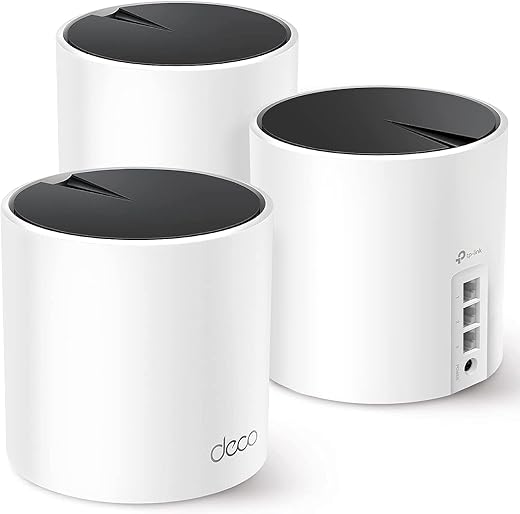
Stop the Drop: Keep Smart Devices Connected
Smart home devices dropping Wi‑Fi is maddening and common. Crazy fact: intermittent connections break automations far more often than people expect. This guide shows empathetic, practical steps to diagnose causes, boost signal, tune your router, and keep bulbs, cameras, locks, and hubs reliably connected daily.
What You’ll Need

Step 1 — Diagnose the Pattern: Find the Root Cause
Is it your router, a device, or invisible interference? Start like a detective — the fix depends on the diagnosis.Map the problem before changing anything. List devices that drop and record time, location, and frequency band (2.4 GHz or 5 GHz).
Use a Wi‑Fi analyzer app (e.g., WiFi Analyzer, NetSpot) to measure signal strength, crowded channels, and interference from microwaves, baby monitors, cordless phones, and neighbor networks. Test by moving a problematic device next to the router — if drops stop, you have a coverage or interference issue. Suspect firmware or a cloud‑service outage when multiple devices of one vendor or model fail together. Check router logs for DHCP errors, frequent client disconnects, or reauthentications. Temporarily disable guest networks, AP isolation, and band‑steering to see if stability improves. Diagnose carefully to narrow fixes and avoid buying hardware that isn’t the problem.
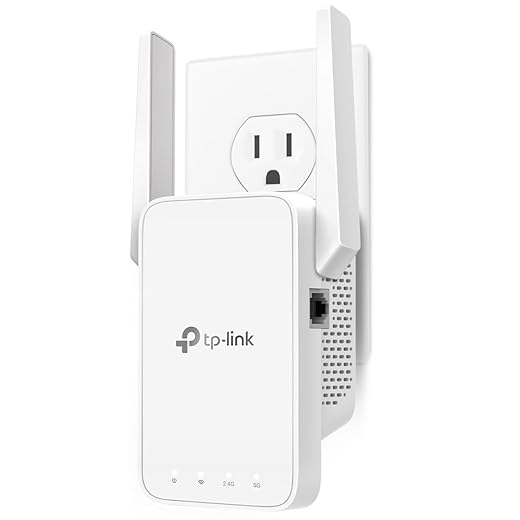
Step 2 — Improve Coverage and Signal Strength
Move one router, save ten reconnects — surprisingly simple placement and hardware tweaks often fix most drops.Optimize router placement first: put the router central and elevated, away from metal appliances, large obstructions, and concrete walls. Place it out in the open — not in cabinets or behind the TV — so signals radiate evenly.
Orient external antennas vertically for broad coverage; angle dual antennas (one vertical, one horizontal) for varied device orientations. Test by moving the router to a bookshelf or high table — many users stop drops simply by relocating a router from a closet to a hallway shelf.
Move a problematic smart plug one room over or replace a metal lamp shade with plastic to see immediate gains.

Step 3 — Optimize Router Settings and Firmware
Aggressive defaults bite back — tweak these settings to keep devices happy (and more secure).Update your router firmware regularly to get stability and bug fixes. Assign DHCP reservations or static IPs for critical devices (example: reserve 192.168.1.50 for LivingRoomCam) to avoid address conflicts and repeated renewals. Increase the DHCP lease time if many IoT devices reconnect often.
Avoid hiding SSIDs or using obscure security modes that cheap IoT stacks struggle with; prefer WPA2 or WPA3 where supported. Create a separate IoT SSID so you can apply tailored settings like forcing devices onto 2.4 GHz, enabling multicast forwarding for discovery, and toggling client isolation as needed.
Enable QoS to prioritize essential devices (e.g., cameras and hubs). Turn off overly aggressive router power‑saving or AP‑sleep features that drop idle clients. Monitor client counts and logs — consumer routers often choke when dozens of devices connect; upgrade hardware if the device table fills or performance degrades.
Step 4 — Device-Level Fixes and Ongoing Maintenance
Sometimes the device is the problem — firmware, power, and simple resets can save hours of troubleshooting.Check each device’s firmware and update it; vendors often patch reconnection bugs. Example: update a smart plug in its app and retest.
Verify power: swap weak adapters or try a known‑good supply. Example: plug a camera into a different outlet to rule out power cycling.
Factory‑reset and re‑pair persistently flaky devices, then return them to their intended location.
Ensure 2.4 GHz–only devices use the correct SSID and aren’t being forced onto 5 GHz — create a clear “Home‑2G” SSID if needed.
Replace batteries and adjust sleep/low‑power settings on battery sensors; aggressive power‑saving can mimic disconnects.
Roll out changes one at a time so you can identify which fix worked.

Keep It Consistently Connected
Stable smart home Wi‑Fi is achievable by diagnosing issues, improving coverage, tuning router settings, and maintaining devices; test changes methodically, prioritize fixes that match your diagnosis, schedule regular updates, then try these steps and share your results to help others.

Question: the guide suggests fixing DHCP lease times and assigning static IPs for stubborn devices. Any downsides to assigning static IPs to everything? I’m lazy and tempted to just set them all manually 😅
Yep — use DHCP reservations. Same result without the administrative headache.
Don’t go full manual unless you enjoy tech chaos. Static IPs are fine for a handful of always-on devices (cameras, NAS, hub). But managing dozens manually becomes a mess and can cause IP conflicts. Better: reserve IPs in the router’s DHCP for those devices.
Skeptical but optimistic: I followed Step 3 (optimize router settings) and disabled 802.11w because some of my older devices couldn’t handle it. Now they’re stable. Kinda annoying that security features sometimes clash with old gear.
Anyone else had to sacrifice a feature for compatibility?
This happens. 802.11w (management frame protection) can break older or poorly implemented devices. If you disable it, weigh the trade-off and isolate vulnerable devices on a separate VLAN if possible.
Pro tip: see if the device manufacturer has a firmware fix first. Sometimes they patch compatibility without sacrificing security.
If you can’t update, putting legacy devices on a guest network isolates them from your main LAN — less risk.
I had to downgrade encryption mode to WPA2 for a legacy camera. Not ideal, but the camera worked again. Time to retire that camera, honestly.
Long post — forgive me. I tried everything from moving devices, changing channels, to factory resetting my router and still had random drops. The breakthrough came from reading your “Diagnose the Pattern” section: I logged drops and discovered they happened only when my microwave was ON (silly, I know).
Steps I took:
1) Moved microwave a few inches away from the IoT shelf
2) Switched most devices to 5 GHz where possible
3) Put a couple of stubborn sensors on a hub with a different protocol
Result: near-zero disconnects for two months. Worth documenting: make a log with timestamps before changing anything — data trumps guessing.
Also, thanks for the humor in the article — tech articles that aren’t dry are the best!
Love that you made a log. I always skip that and regret it later. Congrats on the fix!
If anyone wants, we can add a downloadable log template to the guide — say the word and we’ll prep one.
Fantastic troubleshooting and thanks for sharing the detailed steps — real examples like this help other readers. Microwave interference is classic for 2.4 GHz devices.
Yep, microwaves and 2.4 GHz are frenemies. Anyone using 5 GHz more nowadays sees fewer of these weird issues.
Thanks for the play-by-play — I’m going to start a log tonight. Might save me hours of guesswork.
Loved the firmware reminder — I had a camera that kept dropping because of outdated firmware. After updating it behaved. But the guide could use a tiny flowchart: “Diagnose -> Try static IP/DHCP change -> Update firmware -> Reset -> Replace”. Would’ve saved me some trial-and-error.
Anyone else think a simple checklist PDF would be useful?
I second the checklist. I kept re-reading the article and missed one step. A one-page checklist would be sick.
Great suggestion — a printable checklist is a good idea. We’ll consider adding a flowchart to the guide in the next revision. In the meantime, the steps you listed are a solid order of operations.
If you want, I can sketch a quick checklist and share it here. I use Lucidchart for this kind of thing.
Sara, that’d be awesome — feel free to post a simple version and we’ll link to it.
Great guide — I actually followed the “Diagnose the Pattern” step and realized my smart bulbs only drop out when my robot vacuum runs (of course 🤦♀️).
I moved the vacuum’s dock and tweaked the router channel like you suggested and it’s been stable for a week. The part about checking DHCP lease times was new to me — saved my evening. Thanks!
One question: any tips for identifying interference from weird sources (like a neighbor’s gear) beyond a Wi‑Fi analyzer app?
Yep, I use the analyzer and also unplug things one-by-one (painful but effective). If it improves when a device is off, bingo. Worth trying before buying mesh gear.
You can also check for non-Wi-Fi interference (microwaves, baby monitors). Those can ruin 2.4 GHz but leave 5 GHz fine.
Nice find, Olivia — robot vacuums are sneakily chatty devices. For neighbor interference, try running the analyzer at different times of day and note patterns. If you see peaks aligning with certain hours, that points to nearby activity. Also consider switching to a less crowded 5 GHz channel.
Minor nitpick: the section on “Optimize Router Settings” mentions QoS but doesn’t explain that misconfigured QoS can make things worse. I tried enabling QoS and my streaming lagged more until I reset it. Maybe add a warning or recommended presets?
Otherwise, super helpful guide. Thumbs up 👍
Good point — QoS can be tricky. We’ll add a warning and include basic presets (e.g., prioritize VoIP or video) and note when to leave QoS off.
Thanks — I turned on QoS once and regretted it. Nice to see I’m not the only one.
For most home setups, leave QoS off unless you have a real problem. Modern routers often handle traffic pretty well without it.
Here’s a weird edge case I ran into: a bunch of cheap smart plugs would drop when the thermostat ramped heating on. Turns out the thermostat’s Zigbee mesh overlapped and caused timing issues with my Zigbee bridge. The guide’s device-level fixes section nudged me to consider non-Wi-Fi protocols — helped a lot.
So: don’t forget other wireless standards when diagnosing!
If you’re stuck, moving smart hubs away from the router or using shields can help. Or swap to devices on a different mesh.
Excellent reminder — non-Wi-Fi wireless tech (Zigbee, Z-Wave, Bluetooth) can interact with your setup. Glad the guide pointed you in the right direction.
I didn’t even think about Zigbee. Thanks for sharing; I’ll check my hub interactions next.
I appreciate the maintenance tip to reboot the router occasionally. But can someone explain WHY rebooting helps? I feel like I’m doing digital voodoo every month 😂
Also, what’s a sensible reboot schedule if you have ~30 devices?
Router firmware updates often require reboots too. I set mine to auto-update overnight and reboot — less manual pain.
Rebooting clears memory leaks, resets stale connections, and can reassign better channel choices — it’s the ‘turn it off and on’ that actually resets weird states. For ~30 devices, a monthly reboot is reasonable; if you see instability, try weekly. Schedule it during low-usage hours and enable automatic reboots if your router supports it.
Short and sweet: Step 2 (Improve Coverage) solved my dead zone in the upstairs hallway. Bought a cheap mesh node and it actually worked.
However, PSA — not all ‘extenders’ are equal. Read the fine print or you’ll get worse latency. The guide’s comparison tips were spot on.
Totally — cheap extenders can create a new SSID and force devices to stick to the weaker node. Mesh systems usually handle roaming better, so look for seamless roaming and same-SSID support.
Also check ethernet backhaul options if possible. Mesh nodes with wired backhaul are night-and-day.
Agreed. I learned the hard way. If your devices don’t handle band steering well, try separate SSIDs for 2.4 and 5GHz for a while.